Best AI Coding Assistants in 2026: A Practical Comparison
Four Mature Tools, One Decision
AI coding assistants are a standard part of the developer toolkit in 2026. The hard question is no longer whether to use one, but which of several mature tools fits the way you actually work.
This guide compares the four assistants most developers shortlist today: Claude Code, Cursor, GitHub Copilot, and Windsurf. It explains what each does best, lays out pricing tiers, and gives a plain verdict for common situations such as solo work, teams, students, and terminal-heavy workflows. If you are new to the idea, it helps to first understand how AI pair programming works, since that is the model most of these assistants follow.
Rather than crown one winner, the goal here is to match a tool to your habits. By the end you will know which one to install first, and which second tool, if any, is worth pairing with it.
What an AI Coding Assistant Does
At its core, an AI coding assistant helps you write, change, and understand code faster. The exact shape varies by tool, and that shape matters more than any single feature.
Some assistants live inside your editor and focus on autocomplete and inline edits. As you type, they suggest the next line or block, and you accept with a keypress. Others run in the terminal and act as agents that read files, plan a change, and apply it across a whole project before reporting back.
Both styles can explain unfamiliar code, propose fixes, generate tests, and answer questions in a chat panel. The difference is how much they do on their own and where they do it. An autocomplete tool waits for your keystrokes; an agent takes a goal and runs with it. The right one depends on how hands-on you want to be.
Two comparisons come up constantly at this stage. If you already use your editor’s built-in completion, our breakdown of AI coding assistant vs traditional IDE autocomplete explains what actually changes. And if you have been pasting code into a chat window instead, AI coding assistant vs ChatGPT for programming covers why repository context changes the output.
How to Judge an AI Coding Assistant
Before comparing named tools, it helps to know what actually separates them. Five factors decide the fit for most developers.
The first is form factor: an extension bolted onto your current editor, a standalone AI-first editor, or a terminal agent. This one choice shapes everything else. The second is context depth, meaning how much of your project the tool can reason about at once, from the open file to the entire repository. Deep context is what makes multi-file refactors reliable.
The third factor is autonomy: does the tool only suggest, or can it plan and apply a multi-step change end to end? The fourth is editor and language support, since a tool that does not run where you work is a non-starter. The fifth is cost and privacy, including free-tier limits and whether your employer allows a given tool on its code. Keep these five in mind as you read the sections below, because each named tool trades them off differently.
The Tools at a Glance
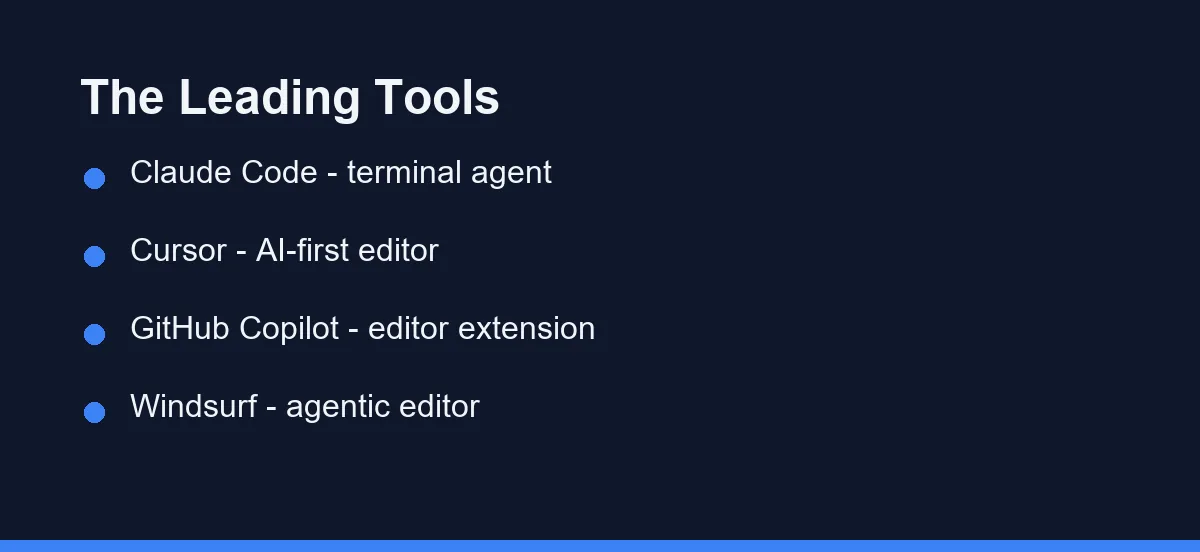
The table below summarizes the leading assistants and where each one fits.
| Tool | Form factor | Best for | Notable strength | Watch out for |
|---|---|---|---|---|
| Claude Code | Terminal agent | Repo-wide, multi-file changes | Plans before it edits | No graphical editor UI |
| Cursor | AI-first editor | Inline edits and autocomplete | Familiar VS Code feel | Switching editors |
| GitHub Copilot | Editor extension | Autocomplete across many IDEs | Widest editor support | Lighter on big refactors |
| Windsurf | AI-first editor | Agentic edits in the editor | Smooth multi-step flows | Newer, smaller ecosystem |
| Tabnine | Editor extension | Regulated shops that cannot send code out | Self-hosted and air-gapped options | Lighter on agentic work |
| JetBrains AI | Built into the IDE | Teams living in IntelliJ, PyCharm, WebStorm | Uses the IDE’s own project model | Does not follow you to other editors |
Each of these is a strong choice in its lane. The differences come down to interface and how much you want the tool to act on its own, which is exactly what the rest of this guide unpacks.
Claude Code
Claude Code is a terminal-based agent from Anthropic. You describe a task in plain English, and it reads the relevant files, proposes a plan, and edits across the project, pausing for your approval on larger changes.
Its strength is coordinated, repository-wide work. Renaming a concept that appears in twenty files, wiring a new module into an existing app, or working through a failing test suite all play to an agent that can hold the whole project in view. Because it runs in the terminal, it also fits neatly into scripts, continuous integration, and any workflow where you already live at the command line.
The trade-off is that there is no graphical editor built in; you keep your own editor open alongside it. That suits developers who are comfortable in a shell and less ideal for those who want everything in one window. For a full walkthrough, see our Claude Code setup guide, and for a language-specific view, our Claude Code vs Cursor for Python comparison.
Ideal user: developers who automate work, manage larger codebases, or simply prefer the terminal.
Cursor
Cursor is an AI-first editor built on the VS Code foundation. If you have used VS Code, the layout feels familiar from the first minute, so the switch costs little. The difference is that AI sits at the center rather than on the side.
Cursor shines at inline autocomplete and quick edits on a selection, and it also reads across your repository for larger changes and includes an agent mode for multi-step tasks. That range is why it appeals to developers who want both fast daily suggestions and occasional heavier edits without leaving one window.
The main cost is that adopting Cursor means adopting a new primary editor. For developers happy to do that, it is one of the most complete options available. Our GitHub Copilot vs Cursor comparison breaks down the editor-versus-extension choice in detail.
Ideal user: developers who want an AI-first workspace and are willing to make Cursor their main editor.
GitHub Copilot
GitHub Copilot, from GitHub and Microsoft, is the most widely used assistant and the easiest to slot into an existing setup. It works as an extension across VS Code, Visual Studio, the JetBrains family, and more, so you keep your editor and simply gain an AI layer.
Its core strength is fast, in-line autocomplete, backed by a chat panel for questions, explanations, and edits. Broad editor support and a gentle learning curve make it the simplest place to start, especially for teams already inside the GitHub ecosystem where it connects to pull requests and the wider platform.
Its relative weakness is the largest, repository-wide refactors, where a dedicated agent can feel more coordinated. Many developers use Copilot for everyday coding and reach for an agent when a task grows. See our GitHub Copilot vs Claude Code comparison for that exact split, and the best AI coding assistant for JavaScript for a language view. If your constraint is where source code may travel rather than raw capability, the Tabnine entry later in this guide covers the self-hosted route.
Ideal user: developers who want AI inside the editor they already use, with the least disruption.
Windsurf
Windsurf is an AI-first editor with a focus on agentic, multi-step edits inside the workspace. Like Cursor it builds on a familiar editor base, but it leans harder into letting the AI carry a change across several steps while keeping you in the loop.
It aims to make larger edits feel smooth without dropping to a terminal, which appeals to developers who want more autonomy than a pure autocomplete tool but still prefer a graphical editor. The ecosystem around it is younger and smaller than Copilot’s, so weigh long-term tooling and extension support alongside the core experience. Our Windsurf review and Cursor vs Windsurf comparison go deeper.
Ideal user: developers who want editor comfort plus more autonomous, multi-step edits.
Two More Worth Knowing: Tabnine and JetBrains AI Assistant
The four above cover most decisions. Two others win specific situations outright, and skipping them wastes time if you are in one of those situations.
Tabnine is the answer when the constraint is where your code goes. Its pitch is privacy rather than raw capability. That means self-hosted and air-gapped deployment, plus a model the company says is trained on permissively licensed code. For a regulated shop that cannot send source outside, this reframes the whole comparison. The more capable tool is simply not eligible.
Read that claim against your own contract rather than against the marketing page. The question is not whether a vendor offers self-hosting, it is whether your agreement permits the alternative.
JetBrains AI Assistant is the answer when you live in IntelliJ, PyCharm, or WebStorm. Being built into the IDE, it plugs into the inspections, refactorings, and project model already there. Its context feels grounded in a way a plugin has to work harder for.
Its trade-off is scope. It does not follow you to other editors, which rarely bites if your world is JetBrains and becomes a real constraint if you switch editors often. Copilot is the safer pick when your team spans several IDEs.
In-Editor Tools vs Terminal Agents
The clearest split among these tools is where they live, and understanding it makes the choice simpler than any feature list.
In-editor tools like Cursor, Copilot, and Windsurf keep you in a familiar workspace. They excel at fast suggestions and edits while you read and write code by hand, which suits interactive, exploratory work where you want to stay close to every line.
Terminal agents like Claude Code work from the command line. They are built to take a goal, plan it, and apply changes across many files at once, which suits automation and larger structural work where reviewing a coordinated plan beats editing file by file.
Neither style is better in general, and the two are complementary rather than competing. Plenty of developers keep an in-editor assistant for daily coding and call on a terminal agent when a task spans the whole repository.
Pricing Tiers Compared
Pricing changes often, so treat the figures below as approximate and confirm the current numbers on each official site before you commit. The point here is the shape of each tool’s plans, which changes less than the exact price.
| Tool | Free tier | Typical individual plan | Team or business tier |
|---|---|---|---|
| GitHub Copilot | Yes, limited completions and chat | Around $10 per month for Pro | Per-user Business and Enterprise tiers |
| Cursor | Yes, limited usage | Around $20 per month for Pro | Per-user Business tier |
| Claude Code | Trial via a Claude plan | Included with Claude Pro or Max plans, or API usage | Team and enterprise Claude plans |
| Windsurf | Yes, limited usage | Low-cost monthly Pro tier | Per-user team tiers |
| Tabnine | Yes, limited completions | Per-user monthly plan | Enterprise tier with self-hosting |
| JetBrains AI | Trial through the IDE | Sold standalone or bundled with an All Products pack | Per-user organisation plans |
A few patterns stand out. Every tool has a free entry point or trial, so you can test the fit at no cost. The individual paid tiers cluster in the same rough range, which means price rarely decides the choice; the workflow does. Claude Code is the exception in structure, since access comes through Anthropic’s Claude plans or usage-based API billing rather than a standalone editor subscription.
As a simple rule, match the plan to how much you code. Occasional users can start on a free or low tier, while daily users usually get more from a paid plan. Treat the first month as a trial and watch how often you reach for the tool before locking in an annual commitment.
Which Should You Choose? Verdicts by Use Case
The right tool depends on your situation more than on any ranking. Here are direct picks for the most common ones.
Solo developer, mixed work: start with Cursor. One editor covers autocomplete and larger edits, which keeps a solo setup simple. Add Claude Code if you often make repo-wide changes.
Inside a team on GitHub: start with GitHub Copilot. It connects to the pull requests and platform your team already uses, and its per-seat business tier is easy to roll out. It is also the lowest-friction option for a shared standard.
Terminal-heavy or automation-focused: choose Claude Code. Its plan-then-edit agent fits scripts, continuous integration, and command-line workflows better than any editor extension.
Student or budget-conscious learner: begin on a free tier, and lean on the tool as a tutor. Copilot and Cursor both explain code well in context; see our free AI coding assistants for students guide for the no-cost routes.
Wants maximum in-editor autonomy: try Windsurf, then compare it against Cursor. Both keep you in a graphical editor while letting the AI carry multi-step changes.
If you remember one thing, make it this: pick one in-editor tool and, if your work calls for it, one terminal agent. That pairing covers almost every developer’s needs.
Guides for Specific Languages and Roles
The four tools above behave differently depending on what you write and who you write it for. A React component, a typed API layer, and a decade-old service each stress a different part of an assistant, so a general ranking only takes you so far.
By language. TypeScript work leans hardest on how well an assistant reads your type definitions, which our guide to the best AI coding assistant for TypeScript covers in detail. For component-heavy front-end work, the best AI coding assistant for JavaScript guide covers React hook context and the failure patterns worth reviewing for. On the Python side, how to use Claude Code for Python walks through a real terminal workflow.
By role and task. Notebook and data work has its own constraints, which the AI coding assistant for data scientists guide addresses. If most of your week goes to inherited code, using an AI coding assistant for legacy code refactoring explains where agents help and where they create review debt. Freelancers weighing a subscription against billable hours can start with our GitHub Copilot worth-it guide, which prices the subscription against a freelance rate.
Read the general comparison first, then the guide that matches your daily work. The second one usually changes the decision more than the first.
Common Mistakes to Avoid

A few habits cause most of the frustration people report with these tools, and each is easy to avoid once you know it.
The first is accepting changes without reading them. Always review the diff before you apply it, because a plausible-looking edit can still be wrong. The second is giving vague prompts; a request like “make this better” produces weak results, while a specific goal such as “add input validation to this function and update its test” produces useful ones.
The third mistake is skipping version control. Without commits, large AI edits are hard to review or undo, so commit often and let the assistant work against a clean state. The fourth is expecting perfection. These tools are fast assistants, not replacements for judgment, and you remain the reviewer who decides what ships.
Five Questions That Narrow It Down

Picking a tool is easier when you start from your own habits. Use these questions as a guide.
- Do you prefer working inside an editor or in the terminal?
- Do you want suggestions only, or an agent that plans and applies changes?
- How large are your typical tasks, from quick edits to repo-wide refactors?
- Which editors and platforms does your team already use?
- What are the free-tier limits, and does your employer allow the tool on its code?
If you favor the editor, start with Cursor or Copilot. If you favor the terminal and larger tasks, start with Claude Code. Windsurf is the pick when you want an editor that leans toward autonomous edits.
One caveat applies if your day is mostly Terraform, YAML, and shell rather than application code. The ranking shifts on infrastructure work, and AI coding assistants for DevOps explains why.
Tips for Getting Real Value
The tool matters less than how you use it, and a few habits make any assistant more effective.
Give specific instructions that name the file, function, or behavior you want changed. Review every diff, since AI suggestions are drafts rather than final answers. Keep tests nearby and ask for test updates in the same request as a refactor, so behavior and coverage move together. And use version control, committing often so changes stay easy to review and undo.
These habits sound basic, but they are what separate developers who get steady value from those who bounce off after a week. The assistant handles the typing; you supply the direction and the review.
Are These Tools Right for Beginners?
New developers often wonder whether AI assistants help or hurt while learning. The honest answer is that they can do both, depending entirely on how you use them.
Used well, they are a strong learning aid. You can ask why a piece of code works, request a simpler version, or have an error explained in plain language, which turns everyday coding into a steady source of small lessons. Used poorly, they become a crutch: if you accept every suggestion without understanding it, you miss the practice that builds real skill.
A good rule for beginners is to treat the tool like a patient tutor, not an autopilot. Type code yourself when you are learning a concept, and lean on the assistant to explain, review, and unblock you. Editor-based tools like Cursor and Copilot suit beginners well because suggestions appear in context as you type, while a terminal agent like Claude Code helps you understand how files connect across a project.
Keep the Decisions That Are Yours
In 2026, the best AI coding assistant is the one that matches your workflow. Cursor, Copilot, and Windsurf lead for in-editor work, while Claude Code leads for terminal-based, repo-wide tasks, and the four overlap far less than their marketing suggests.
The smartest approach is to try one editor-based tool and one terminal agent, then keep the combination that fits your daily work. Start on a free tier, review carefully, and let the tools handle the repetitive parts while you focus on design and judgment.
Whichever you choose, remember that these assistants are most useful when you stay in the driver’s seat. Use them to move faster on the routine work, and save your own attention for the decisions that still belong to you. For a category-wide starting point, this guide pairs well with our deeper head-to-head comparisons linked throughout.
Once a tool is in place, the harder question is whether it is actually saving you time. How to tell if an AI assistant makes you faster sets out the few measurements worth taking before you renew a subscription on a feeling.
FAQ
What is the best AI coding assistant in 2026?
There is no single winner. Cursor and GitHub Copilot lead for in-editor autocomplete and quick edits, Claude Code leads for terminal-based repo-wide tasks, and Windsurf sits between the two with agentic edits inside the editor. The best pick depends on whether you work mostly in an editor or a terminal, and how much autonomy you want.
Are AI coding assistants worth the money?
For most active developers, yes. They remove time from boilerplate, refactors, tests, and unfamiliar code, and a paid tier usually pays for itself if you code most days. Occasional coders can stay on a free tier and still get value. You review every change either way.
Can I use more than one AI coding tool at once?
Yes, and many developers do. A common setup pairs one in-editor assistant for daily autocomplete with one terminal agent for larger multi-file changes. The two roles rarely overlap, so the combination covers both quick edits and structural work.
How do I choose a pricing tier without overpaying?
Match the plan to how often you code rather than to the feature list. Confirm the current tiers on each official site, start on a free tier or the first paid month as a trial, and watch how often you actually reach for the tool before committing to an annual plan.
Are AI coding assistants good for beginners?
They can help beginners a great deal when used as a tutor rather than an autopilot. Ask why code works, request simpler versions, and read every suggestion. The risk is accepting output you do not understand, which skips the practice that builds skill.
What about Tabnine or JetBrains AI Assistant?
Each wins a specific situation. Tabnine is the pick when your contract or industry forbids sending source to a third-party service, because it offers self-hosted and air-gapped deployment. JetBrains AI Assistant is the pick when your team lives in IntelliJ, PyCharm, or WebStorm and wants the IDE's own project model behind the suggestions.
Sources
- GitHub Copilot plans — checked 2026-09-07
- Cursor pricing — checked 2026-09-07
- Anthropic pricing (Claude Code) — checked 2026-09-07
- Windsurf pricing — checked 2026-09-07
Some links may be affiliate links. We may earn a commission at no extra cost to you.
This article was written with AI assistance. It is researched and fact-checked, not based on personal hands-on testing unless explicitly stated.
Comments
Post a Comment