Claude Code vs Cursor for Python: A Practical 2026 Comparison

One Types, the Other Delegates
Two Python developers can both love AI tooling and still reach for opposite tools. One lives in the editor and wants suggestions as they type. The other lives in the terminal and wants an agent that reshapes a whole repository on command. Cursor and Claude Code are built for those two habits.
Both are strong, and both handle Python well. They simply meet you at different points in your workflow. Each brings AI pair programming to Python work in its own way.
This guide explains how each one works, compares them feature by feature, and helps you pick the right fit. It also covers pricing shape and how many developers run both together.
Editor Comfort or Repository Reach
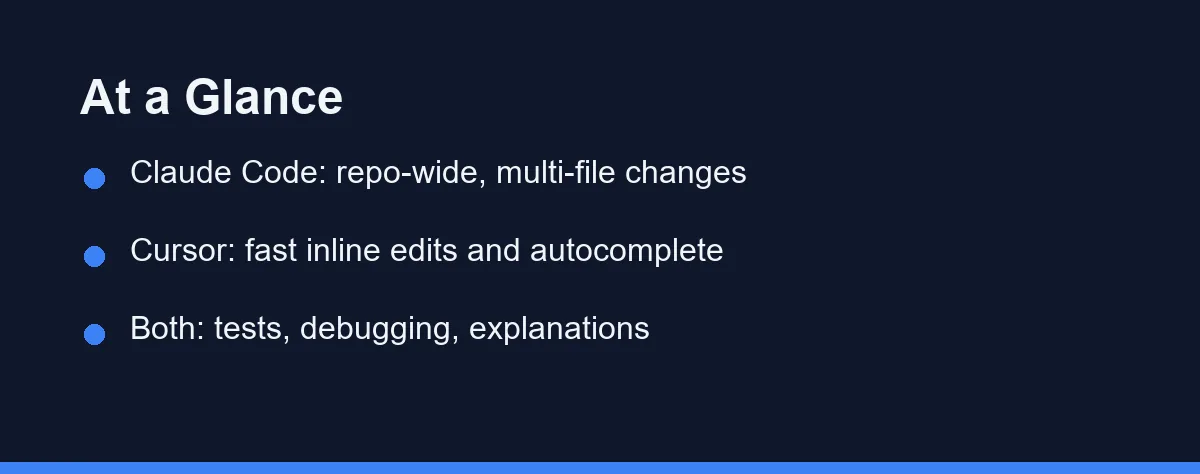
Pick Cursor if you want AI features built directly into a familiar code editor with inline edits and autocomplete.
Pick Claude Code if you prefer a terminal-based agent that can read, plan, and change many files across a repository.
Many Python developers end up using both, and the comparison table below shows exactly where each one is strongest.
Claude Code, Briefly
Claude Code is a command-line coding agent from Anthropic. You run it in your terminal, point it at a project, and describe what you want in plain English.
It can read your files, propose a plan, edit multiple files, run commands, and explain its changes. Because it lives in the terminal, it fits well into existing shells, scripts, and CI workflows.
For Python projects, this means it can refactor a package, update imports across modules, and adjust tests in one coordinated pass.
Cursor, the AI-First Editor
Cursor is an AI-first code editor built on top of the VS Code foundation. If you have used VS Code, the layout will feel familiar right away.
Its strengths are inline: fast autocomplete, quick edits on a highlighted block, and a chat panel that understands your open files. You stay inside the editor the whole time.
For Python, that makes everyday work smooth, such as completing a function, renaming a variable, or fixing a small bug without leaving your file.
Eleven Rows That Settle It
The table below summarizes the practical differences for Python work.
| Feature | Claude Code | Cursor |
|---|---|---|
| Form factor | Terminal / CLI agent | Desktop code editor |
| Best at | Multi-file, repo-wide changes | Inline edits and autocomplete |
| Learning curve | Comfortable if you like the terminal | Easy for VS Code users |
| File context | Reads the whole repository on demand | Focuses on open and linked files |
| Running commands | Built in, runs tasks and tests | Through the integrated terminal |
| Workflow fit | Scripts, automation, CI | Day-to-day interactive editing |
| Extensions | Shell tools and MCP servers | VS Code extension ecosystem |
| Python refactors | Coordinated, repo-wide passes | Fast within open files |
| Autocomplete | Not the primary mode | Inline, as you type |
| Reviewing changes | As terminal diffs | In-file, alongside your code |
| Pricing model | Usage-based via Anthropic plans | Free tier plus subscriptions |
Setup and Workflow
Getting started with each tool takes only a few minutes. A typical Claude Code session looks like this:
# Install the CLI, then start it inside your Python project
npm install -g @anthropic-ai/claude-code
cd my-python-project
claude

# Then describe the task in plain English, for example:
# "Add type hints to utils.py and update the related tests."
Cursor follows a different rhythm. You open the project folder in the editor, then use a keyboard shortcut to ask for an edit on the current selection or to open the chat panel. The AI responds inside the file you are already viewing.
The core difference is location. Claude Code works from the terminal outward, while Cursor works from the editor inward.
How They Handle Common Python Tasks
For autocomplete and small inline fixes, an in-editor tool like Cursor has a natural advantage. Suggestions appear as you type, which keeps short edits fast.
For larger jobs, a terminal agent like Claude Code is well suited. Renaming a function used across many modules, or restructuring a package, benefits from a tool that reads and edits the whole repository in one pass.
Writing tests sits in the middle. Cursor is quick for a single test file, while Claude Code can generate and wire up tests across several modules at once.
Debugging also differs in feel. In Cursor, you can ask about an error right next to the code. With Claude Code, you can paste a stack trace and let the agent trace it across files.
Where Each Python Tool Bends
Every tool involves trade-offs. Here is a balanced view for Python work.
Claude Code strengths
- Works across an entire repository in one coordinated pass.
- Fits naturally into shells, scripts, and CI pipelines.
- Plans multi-step changes before it edits.
Claude Code trade-offs
- The terminal-first style takes adjustment if you prefer a graphical editor.
- You review changes as diffs rather than watching them appear in a file.
Cursor strengths
- Familiar editor layout for anyone coming from VS Code.
- Fast inline autocomplete and quick edits on a selection.
- Keeps you in a single window for the whole task.
Cursor trade-offs
- Very large, repository-wide refactors can feel less coordinated.
- You manage context by opening and linking the right files.
Getting More From Either Tool
A few habits help with either tool.
Give clear, specific instructions. Instead of “fix this,” name the function, file, or behavior you mean.
Work in small steps for risky changes. Ask for one change, review the diff, then continue. This keeps results predictable.
Keep your tests close. When you ask for a Python refactor, request matching test updates in the same prompt.
Commit often. Frequent commits make AI changes easy to review and simple to roll back.
One Flat Plan, One Meter
Both tools use paid plans, and pricing can change, so always confirm the current numbers on the official pages.
Claude Code is available through Anthropic plans and usage-based access. You can review the latest details on the Claude Code documentation.
Cursor offers a free tier plus paid subscriptions with higher limits. Check the Cursor website for current plan details before you commit.
The table below shows the rough shape of the two pricing models at the time of writing. Confirm current numbers on the official pages, since both change often.
| Tool | Entry option | Typical paid plan (approx.) | Model type |
|---|---|---|---|
| Cursor | Free tier | ~$20/mo Pro | Flat subscription |
| Claude Code | Usage-based access | Pay per usage, via Anthropic plans | Usage-based |
These figures are approximate and change often, so treat them as orientation, not a quote. As a rule, match the plan to how often you code. Heavy daily users get more value from a paid tier, while occasional users may start on the lighter option. For a wider price comparison, see our Claude Code pricing explainer.
Which Python Workflow Fits Which Tool
The best choice depends on the Python work in front of you. Here are direct picks for common situations.
Best for large repository refactors: Claude Code. When a change touches many modules at once, a terminal agent that reads and edits the whole repo shines. It plans the pass, updates imports and tests, and reports back in one coordinated run.
Best for fast day-to-day editing: Cursor. For completing a function, renaming a variable, or fixing a small bug, inline suggestions keep you moving. The familiar editor layout means almost no ramp-up for VS Code users.
Best for automation and CI pipelines: Claude Code. Because it lives in the terminal, it slots into scripts and continuous integration naturally. Teams that automate routine edits get more from an agent than an interactive editor.
Best for a developer new to AI tools: Cursor. The gentle learning curve and in-file feedback make it the easier entry point. You can see every change appear right where you work.
Best for someone who wants both: run them together. Keep Cursor open for quick edits and call Claude Code for the heavy structural work. Many Python developers land here, using each tool where it is strongest.
Comfort Pick or Power Pick

If your work is mostly interactive editing and you value a familiar interface, Cursor is the comfortable choice.
If you automate tasks, work across large repositories, or live in the terminal, Claude Code will feel more powerful. Our full Claude Code review shows what those agent runs look like in practice.
For a deeper category overview, see our guide to the best AI coding assistants. If you are new to the terminal tool, the Claude Code setup guide walks through the first steps.
Using Both in One Workflow
You do not have to pick only one tool. A common setup pairs them by strength.
You keep Cursor open as your main editor for writing code, reading files, and making quick inline edits. The familiar layout keeps everyday work fast.
When a task grows large, you switch to the terminal and call Claude Code. It handles the repository-wide change, runs the tests, and reports back. Then you return to Cursor to review and polish.
This split plays to each tool’s design. Cursor stays close to the cursor, while Claude Code reaches across the whole project. For many Python developers, that combination covers both the small daily edits and the heavier structural work without forcing a single compromise.
You Do Not Have to Choose
Claude Code and Cursor solve the same problem from two directions. Cursor brings AI into your editor. Claude Code brings an AI agent into your terminal.
The decision rarely needs to be permanent. Both offer a low-cost way in, so try each for a week on your real Python work. Keep the one that matches your daily habits.
And you do not have to choose at all. Many Python developers run Cursor for fast inline edits and reach for Claude Code when a change spans the whole repository. That pairing covers both the small edits and the heavy lifting without a single compromise.
FAQ
Is Claude Code or Cursor better for Python?
Both handle Python well. Claude Code suits terminal-driven, multi-file work, while Cursor suits developers who want AI built into a familiar editor.
Can I use Claude Code and Cursor together?
Yes. Many developers run Cursor as their editor and call Claude Code in the terminal for larger, repository-wide changes.
Do both tools support other languages besides Python?
Yes. Both are language-agnostic and work with JavaScript, TypeScript, Go, Rust, and more, though this guide focuses on Python.
Which is better for a big Python refactor across many files?
For a large, repository-wide Python refactor, Claude Code usually has the edge. It reads the whole repo on demand, edits many files in one pass, and runs your tests. Cursor is stronger for fast inline edits inside a single file.
Is Claude Code or Cursor easier for a Python beginner?
Cursor is often the gentler start, since its layout mirrors VS Code and suggestions appear inline as you type. Claude Code is powerful but terminal-first, so it suits developers already comfortable in a shell.
Sources
- Anthropic pricing — checked 2026-09-07
- Cursor pricing — checked 2026-09-07
- Claude Code documentation — checked 2026-09-07
Some links may be affiliate links. We may earn a commission at no extra cost to you.
This article was written with AI assistance. It is researched and fact-checked, not based on personal hands-on testing unless explicitly stated.
Comments
Post a Comment