How to Use Claude Code for Python: Setup, Refactors, Tests (2026)
Refactors, Tests, and Bugs From the Shell
If it is a single script, pick an in-editor assistant instead. Launching a terminal agent for a forty-line file adds ceremony without much payoff. The agent earns its place on a Django or FastAPI project where a change touches models, views, and tests at once. The dividing line is how many files a typical task makes you open.
Claude Code is a command-line coding agent from Anthropic that works directly in your terminal. For Python developers, it offers a fast way to refactor code, write tests, and fix bugs.
This guide explains how to use Claude Code for Python projects from start to finish. You will learn how to install it, run it inside a project, and apply it to common tasks.
The focus here is practical. Every step is written so you can follow along in your own Python repository.
By the end, you should feel comfortable using Claude Code for everyday Python work. You will also know where it fits best and where to be careful.
What Claude Code Brings to Python Work
Claude Code reads your files, plans a change, edits multiple files, and runs commands. It does all of this from the terminal, in plain English.
For Python, this matters because real projects rarely live in one file. A single change might touch a module, its imports, and several tests.
Claude Code can handle that spread in one coordinated pass. It understands package structure, so it can update related files together.
It also runs your tools. That means it can call pytest, read the output, and adjust the code until the tests pass.
This combination makes it well suited to medium and large Python codebases. It works with virtual environments, type hints, and common frameworks without extra setup.
Installing Claude Code for Python
- ● Install once with the native installer
- ● Open your project in the terminal
- ● Run the claude command to start
Getting started takes only a few minutes. The recommended native installer does not need Node.js, and Anthropic lists 4 GB or more of RAM as the hardware requirement. An npm package also exists, and it needs Node.js 22 or later.
The steps below show a typical install on macOS, Linux, or WSL. On Windows PowerShell, the native installer command is irm https://claude.ai/install.ps1 | iex. You install once, then run the tool inside any project.
# Install Claude Code with the native installer
curl -fsSL https://claude.ai/install.sh | bash

# Move into your Python project folder
cd my-python-project

# Start Claude Code in this directory
claude
Once it launches, Claude Code reads the project context on demand. You do not need to pre-load files or configure paths by hand.
For a fuller walkthrough of first-time setup, see the Claude Code setup guide. It covers authentication and account options in more detail. The free Claude plan does not include Claude Code, and Claude Pro costs $20 per month billed monthly as of October 2026.
You can also review the official Claude Code documentation. It is the best source for the latest install commands and platform notes.
A Typical Python Workflow
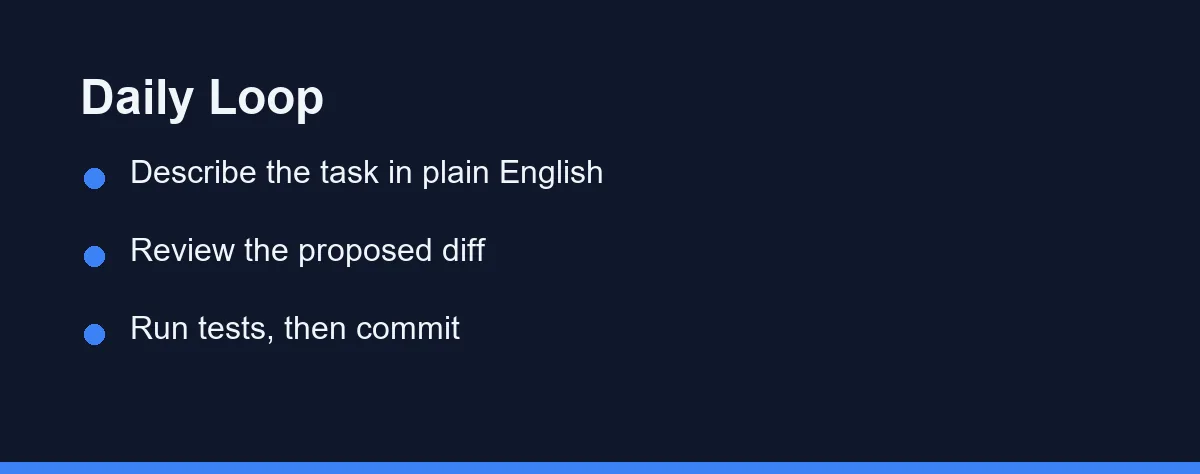
A good Claude Code session follows a simple loop. You describe a task, review the proposed change, then run your tests.
Start by telling the agent what you want in clear language. Name the file, function, or behavior so the request is specific.
For example, you might type: “Add type hints to utils.py and update the related tests.” Claude Code then reads the file, plans the edit, and shows a diff.
You review that diff before anything is applied. This review step keeps you in control of every change.
After you accept the change, ask Claude Code to run your test suite. It can call pytest, read failures, and propose follow-up fixes.
When the tests pass, you commit. Working in small, reviewed steps keeps the project stable and easy to roll back.
Common Python Tasks Claude Code Handles

Claude Code covers most of the daily work in a Python project. The table below shows where it is strongest and how it helps.
| Python Task | How Claude Code Helps | Why It Works Well |
|---|---|---|
| Refactoring | Renames and restructures across modules | Reads the whole repo at once |
| Type hints | Adds annotations and updates signatures | Understands related call sites |
| Testing | Generates and repairs pytest tests | Runs tests and reads failures |
| Debugging | Traces a stack trace across files | Follows imports and call paths |
| Documentation | Writes docstrings and README sections | Sees the code it documents |
| Dependencies | Suggests and wires up packages | Edits imports and config together |
Each of these tasks benefits from a tool that sees the full project. A single-file assistant often misses the connections between modules.
For large refactors, this repo-wide view is the biggest advantage. Claude Code can update a function and every place that calls it in one pass.
Writing and Running Tests
Tests are where an agent that runs commands shines. Claude Code does not just write a test file and stop.
You can ask it to generate tests for a module, then run them right away. It reads the results and fixes anything that breaks.
This loop suits test-driven development. You describe the behavior you want, and the agent writes tests and code until they agree.
Keep your requests scoped to make this reliable. Ask for tests on one module at a time, then review before moving on.
When a refactor changes behavior, request matching test updates in the same prompt. That keeps your suite in sync with the new code.
Debugging Python with Claude Code
Debugging often means chasing an error across several files. This is a natural fit for a terminal agent that reads the whole project.
You can paste a stack trace and ask Claude Code to find the cause. It follows the imports and call paths to the source of the problem.
Once it locates the issue, it proposes a fix as a diff. You review the change, apply it, and rerun the failing test.
For tricky bugs, ask the agent to explain its reasoning first. A short explanation helps you confirm the fix before you accept it.
This approach works for logic errors, broken imports, and failing assertions. The key is to give the full error text so the agent has context.
Working Habits That Pay Off
A few habits make Claude Code far more effective for Python. These apply whether your project is small or large.
Give clear, specific instructions. Instead of “fix this,” name the function, file, or behavior you mean.
Work in small steps for risky changes. Ask for one change, review the diff, then continue so results stay predictable.
Keep your tests close to your code. When you request a refactor, ask for matching test updates in the same prompt.
Commit often as you go. Frequent commits make AI changes easy to review and simple to roll back later.
Use a clean virtual environment. A predictable setup helps the agent run your tools without surprises.
How It Compares to Other Tools
Claude Code is not the only option for Python developers. Editor-based tools take a different shape and suit different habits.
An in-editor assistant keeps suggestions next to your cursor as you type. That feels fast for short, inline edits inside one file.
Claude Code works from the terminal outward instead. It is strongest on multi-file changes that span a whole repository.
For a side-by-side breakdown, read our Claude Code vs Cursor for Python comparison. It maps each tool to a workflow so you can choose with confidence.
You can also compare it with editor plugins like GitHub Copilot. Pricing for all of these tools changes often, so confirm current plans on the official pages.
Which Python Job Fits the Terminal
A single script or a notebook. An in-editor assistant is usually faster. Launching a terminal agent for a forty-line file adds ceremony without much payoff.
A Django or FastAPI service. This is where Claude Code earns its place. Adding a field, a migration, a serializer, and the matching tests becomes one coordinated request instead of five manual edits.
A data pipeline with heavy dependencies. Activate the environment first, then let the agent run the pipeline after each change. Its ability to read a traceback and try again is the main benefit here.
Legacy Python with no test suite. Ask for characterization tests before any refactor. Even a rough safety net makes the changes that follow far less risky.
A library you publish to PyPI. Use it for docstrings, type hints, and consistent error messages. Keep public API decisions in your own hands, since a model will happily rename something your users depend on.
Describe, Review, Test, Commit
Claude Code gives Python developers an agent that lives in the terminal and understands the whole project. It installs in minutes and fits into existing shells, scripts, and test workflows.
The best way to use it is in a simple loop. You describe a task, review the diff, run your tests, then commit.
That rhythm keeps you in control while the agent does the heavy lifting. It works especially well for refactors, test generation, and cross-file debugging.
Start with a small task in a project you know well. Once the loop feels natural, you can hand Claude Code larger, repository-wide jobs with confidence.
On Windows the platform gets a vote before any of this works. We logged six traps that broke an unattended pipeline, from encoding to file locks.
FAQ
Is Claude Code good for Python projects?
Yes. Claude Code is language-agnostic and works well with Python, including virtual environments, type hints, and test frameworks like pytest.
How do I start using Claude Code for Python?
You install it with the native installer (npm also works), open your project folder in the terminal, run the claude command, and describe your task in plain English.
Can Claude Code run my Python tests?
Yes. Claude Code can run pytest, read the failures, and propose fixes across your files, which makes test-driven work smoother.
Does Claude Code use my virtual environment or the system Python?
It runs commands in the shell session you launched it from, so activate your virtual environment before you start the tool. If pytest or a package looks missing, an inactive environment is the usual cause rather than a fault in the agent. Telling it which interpreter you expect also helps in repositories that hold several environments. Checking the output of its first command confirms the setup in seconds.
How should I handle a large Python refactor without losing control of the diff?
Break the work into passes and commit between them, such as one pass for the data layer and another for the callers. Ask for a plan before any edit so you can correct the scope while it is still cheap to change. Requesting matching test updates in the same prompt keeps the suite honest as the code moves. If a diff grows past what you can read carefully, reject it and ask for a narrower slice.
Sources
- Claude Code documentation — checked 2026-09-07
- Anthropic pricing — checked 2026-09-07
- Claude Code docs: Advanced setup — checked 2026-10-03
- Claude plans and pricing — checked 2026-10-03
Some links may be affiliate links. We may earn a commission at no extra cost to you.
This article was written with AI assistance. It is researched and fact-checked, not based on personal hands-on testing unless explicitly stated.
Comments
Post a Comment