GitHub Copilot vs Cursor: Which Should You Use in 2026?

An Add-On or a Whole Editor
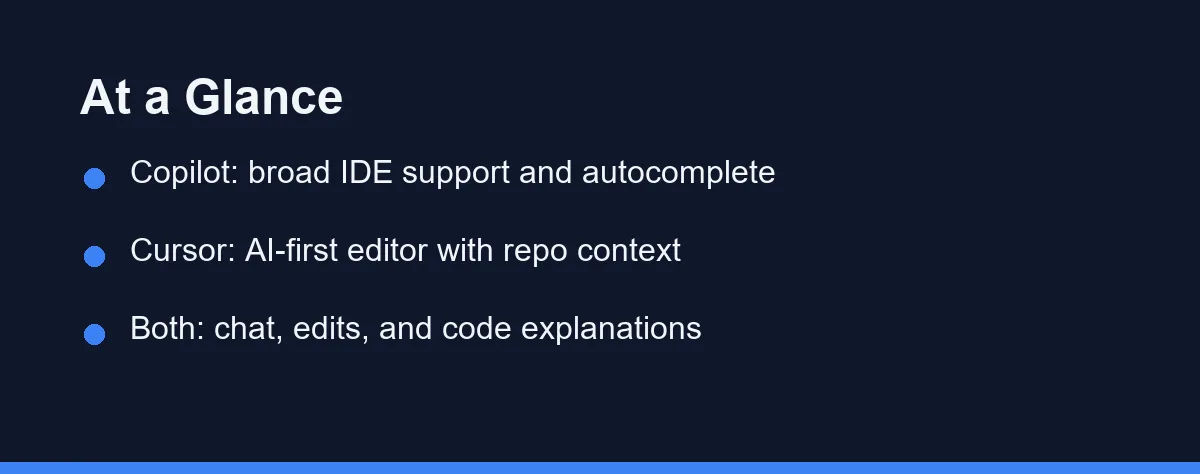
Choosing between GitHub Copilot and Cursor is one of the biggest decisions for developers shopping for an AI coding tool in 2026. Both are popular, capable, and well funded. Yet they take different shapes.
GitHub Copilot is an AI assistant that plugs into editors you already use. Cursor is a full AI-first editor built around deep code awareness.
This guide explains how each tool works, compares them feature by feature, and helps you pick the right fit. You will also see a comparison table and a short code example along the way.
Stay Put or Switch Editors
Pick GitHub Copilot if you want to stay inside your current editor and add fast AI help without switching tools.
Pick Cursor if you want an AI-first editor that understands your whole project and handles larger, multi-file edits.
Many developers try both before settling. The comparison table further down shows exactly where each one is strongest.
What Is GitHub Copilot?
GitHub Copilot is an AI pair programmer from GitHub and Microsoft. It works as an extension inside editors like VS Code, Visual Studio, and the JetBrains family.
Its core feature is inline autocomplete. As you type, Copilot suggests the next line or block, and you accept it with a keypress.
Copilot also includes a chat panel for questions, explanations, and edits. You can ask it to write a function, describe a bug, or generate tests.
Because it lives inside familiar editors, the learning curve is gentle. You keep your existing setup and simply gain an AI layer on top.
Cursor, the Editor Rebuilt Around AI
Cursor is an AI-first code editor built on the VS Code foundation. If you have used VS Code, the layout will feel familiar from the first minute.
The difference is that AI sits at the center, not on the side. Cursor reads your project deeply and can plan changes across several files at once.
Its standout features include repository-aware chat, multi-file edits, and an agent mode that can carry out a task end to end. You describe the goal, and Cursor proposes a coordinated set of changes.
For bigger jobs, this focus pays off. Cursor aims to understand the shape of your codebase, not just the file in front of you.
The Differences That Show Up Daily

The table below summarizes the practical differences between the two tools.
| Feature | GitHub Copilot | Cursor |
|---|---|---|
| Form factor | Extension for existing IDEs | Standalone AI-first editor |
| Best at | Inline autocomplete and quick chat | Multi-file, repo-aware edits |
| Editor support | VS Code, Visual Studio, JetBrains | Cursor app (VS Code based) |
| Project context | Strong within open files | Deep across the repository |
| Agent workflows | Growing agent features | Built-in agent mode |
| Multi-file refactors | Possible with guidance | A core strength |
| Setup cost | Add an extension, keep your editor | Install and adopt a new editor |
| Learning curve | Gentle for current IDE users | Easy for VS Code users |
| Team rollout | Per-seat plans across the GitHub platform | Per-seat business tier |
| Ecosystem | GitHub and Microsoft platform | Focused AI editor experience |
How They Handle Common Tasks
For quick autocomplete, both tools feel fast. You type, a suggestion appears, and you accept it. This covers a large share of daily coding.
For small inline fixes, Copilot is smooth because it stays inside your usual editor. There is nothing new to learn.
For larger refactors, Cursor has an edge. Renaming a function used across many files, or restructuring a module, benefits from its repository-wide awareness.
Writing tests sits in the middle. Both can generate a test file quickly, while Cursor can wire up tests across several modules in a single pass.
Debugging differs in feel. With Copilot, you ask the chat panel about an error next to your code. With Cursor, you can hand the agent a stack trace and let it trace the issue across files.
Onboarding to a new codebase also varies. Copilot answers questions about the file you have open right now. Cursor can summarize how modules connect across the whole project, which helps when you are still learning the layout.
A Quick Code Example
Suppose you ask either tool to add input validation to a Python function. The starting code might look like this.
# Before: no validation
def divide(a, b):
    return a / b

# After: the AI suggests a guarded version
def divide(a, b):
    if b == 0:
        raise ValueError("Cannot divide by zero")
    return a / b
Both tools handle small edits like this well. The real difference appears when the change touches many files at once. That is where Cursor’s project-wide view tends to shine.
What You Gain and Give Up
Every tool involves trade-offs. Here is a balanced view to help you decide.
GitHub Copilot strengths
- Works inside editors you already know and trust.
- Strong autocomplete that speeds up routine coding.
- Backed by the wider GitHub and Microsoft platform.
GitHub Copilot trade-offs
- Very large, repository-wide refactors can feel less coordinated.
- You manage context partly by opening the right files yourself.
Cursor strengths
- Deep project awareness for multi-file changes.
- A built-in agent mode for end-to-end tasks.
- Familiar VS Code layout with AI at the core.
Cursor trade-offs
- Switching editors takes a small adjustment for some teams.
- The richer AI features can feel like a lot at first.
Small Habits, Better Suggestions
A few habits help with either tool, no matter which you choose.
Give clear, specific instructions. Rather than “fix this,” name the function, file, or behavior you mean. Precise prompts produce precise edits.
Work in small steps for risky changes. Ask for one change, review the result, then continue. This keeps the output predictable.
Keep your tests close. When you request a refactor, ask for matching test updates in the same prompt.
Commit often. Frequent commits make AI changes easy to review and simple to roll back later.
A Similar Range Either Way
Both tools use paid plans, and pricing can change, so treat the figures below as approximate and confirm current numbers on the official pages before you commit.
| Plan level | GitHub Copilot | Cursor |
|---|---|---|
| Free | Limited completions and chat | Limited usage on the Hobby tier |
| Individual paid | Pro, around $10 per month | Pro, around $20 per month |
| Team or business | Per-seat Business and Enterprise tiers | Per-seat Business tier |
The two land in a similar range for individuals, so price rarely decides the choice. GitHub Copilot offers a free tier with limits, plus paid plans for individuals and teams; you can review the latest details on the GitHub Copilot page. Cursor offers a free tier plus paid subscriptions with higher usage and more advanced features, listed on the Cursor website.
As a rule, match the plan to how often you code. Heavy daily users get more value from a paid tier, while occasional coders may start free. Because both have a free entry point, the cheapest way to decide is to run each for a week and see which one you keep opening.
Who Should Pick Which Tool
The right pick depends on your situation more than on a feature count. Here are direct calls for the most common ones.
You love your current editor: choose GitHub Copilot. It adds AI to VS Code, Visual Studio, or JetBrains without asking you to change tools, which is the lowest-friction path to daily AI help.
You make frequent multi-file changes: choose Cursor. Its repository-wide awareness and agent mode handle large refactors more smoothly than an autocomplete-first extension.
You are on a team standardized on GitHub: lean toward Copilot. It ties into pull requests and the platform your team already uses, and per-seat rollout is simple.
You want one AI-first workspace for everything: choose Cursor and commit to it as your main editor. The payoff is a single tool that covers both quick suggestions and heavier structural edits.
You cannot decide: run both free tiers for a week on real work. Whichever one you instinctively reach for is your answer, and you can keep the other for its specialty.
Stay With Copilot or Move

If your work is mostly routine coding inside an editor you already love, GitHub Copilot is the comfortable choice. It adds AI without forcing a switch.
If you want deeper project awareness and frequent multi-file edits, Cursor is the stronger pick. Its agent mode suits larger, structural tasks.
For a wider view of the category, see our guide to the best AI coding assistants. If you also weigh terminal-based agents, our Claude Code vs Cursor for Python comparison adds useful context.
Using Both in One Workflow
You do not have to pick only one tool. A common setup pairs them by strength.
You keep GitHub Copilot in your main IDE for fast autocomplete and quick questions. The familiar layout keeps everyday coding smooth.
When a task grows large, you open Cursor and lean on its agent mode. It handles the multi-file change, then reports what it did.
This split plays to each tool’s design. Copilot stays close to your keystrokes, while Cursor reaches across the whole project. For many developers, that combination covers both small daily edits and heavier structural work.
There Is No Wrong Answer Here
GitHub Copilot and Cursor solve the same problem from two directions. Copilot adds AI to the editors you already use, while Cursor rebuilds the editor around AI.
For most developers, the smartest move is to try both for a week and keep the one that matches your daily habits. They also work well together, with Copilot for quick edits and Cursor for the heavy lifting.
Whichever you choose, both tools represent a real step forward for everyday coding in 2026.
Your language matters too. If you work mainly in React, Next.js, or Node, see how these two compare against a terminal agent in our best AI coding assistant for JavaScript guide.
The good news is that there is no wrong answer here. Both tools are mature, actively improved, and used by large developer communities. Start with the one that fits your current habits, then revisit your choice as your projects grow.
FAQ
Is GitHub Copilot or Cursor better in 2026?
GitHub Copilot is great if you live inside VS Code, JetBrains, or Visual Studio and want fast, low-friction AI help without changing editors. Cursor suits developers who want an AI-first editor with deeper repository awareness and are willing to make it their main workspace. The choice is mostly about form factor, not raw capability.
Can I use GitHub Copilot and Cursor together?
Yes. Some developers keep Copilot in their main IDE for autocomplete and open Cursor for larger, multi-file AI edits when a task grows complex. The two roles rarely overlap, so running both is a valid setup rather than a redundancy.
Do both tools support the same programming languages?
Both support many languages, including Python, JavaScript, TypeScript, Go, and Rust. Your choice depends more on editor preference than on language, since both draw on capable underlying models that handle mainstream languages well.
Which is better for large, multi-file refactors?
Cursor generally handles large, multi-file refactors more smoothly because it reads across the whole repository and includes an agent mode. Copilot can do multi-file work too, but you often guide it by opening the right files. For frequent repo-wide changes, Cursor has the edge.
Do GitHub Copilot and Cursor have free versions?
Both offer a free tier, so you can compare them at no cost. Paid individual plans land in a similar range, around $10 per month for Copilot Pro and about $20 per month for Cursor Pro at the time of writing. Confirm current pricing on each official site, since plans change.
Sources
- Cursor pricing — checked 2026-09-07
- GitHub Copilot plans — checked 2026-09-07
- JetBrains AI IDEs — checked 2026-09-07
Some links may be affiliate links. We may earn a commission at no extra cost to you.
This article was written with AI assistance. It is researched and fact-checked, not based on personal hands-on testing unless explicitly stated.
Comments
Post a Comment