Best AI Coding Assistants for Teams in 2026: Security and Rollout
A Solo Pick Fits One Person
Choosing an AI coding assistant for a whole team is harder than choosing one for yourself. A solo pick only has to fit one person, but a team tool has to fit many workflows.
You need to weigh editor support, security, pricing, and how the tool behaves across a shared codebase. The wrong choice creates friction, while the right one quietly speeds up the whole group.
This guide compares the leading options for 2026. It covers what each tool does well, where they differ, and how to roll one out without chaos.
What Makes a Team Tool Different
Individual developers care mostly about speed and comfort. Teams care about those too, but they add a longer list of needs.
Security sits near the top. A team tool touches shared, often proprietary code, so data handling and access controls matter a great deal.
Consistency is the next concern. When several people use the same assistant, you want predictable output and a shared way of prompting it.
Administration also becomes important. Billing, seat management, and usage visibility all need to work at the group level, not just per person.
Finally, teams value integration. The tool should fit existing editors, review processes, and continuous integration pipelines rather than forcing a new one.
The Top AI Coding Assistants for Teams
Three tools lead the conversation for most engineering teams in 2026. Each takes a different shape, so the best fit depends on your habits.
GitHub Copilot is the broadest option. It plugs into many editors and ties tightly into GitHub, which suits teams already living there. You can learn more on the official Copilot page.
Claude Code is a terminal-based agent from Anthropic. It reads, plans, and edits across a repository, which fits larger structural work. The Claude Code documentation covers setup and capabilities.
Cursor is an AI-first editor built on the VS Code foundation. Teams that want shared, AI-rich editing often gravitate to it, and the Cursor website lists current team plans.
Other tools exist, but these three cover the most common team needs. They also pair well, which we will return to later.
Feature Comparison for Teams

The table below summarizes the practical differences for group work. Use it as a starting point, not a final verdict.
| Feature | GitHub Copilot | Claude Code | Cursor |
|---|---|---|---|
| Form factor | IDE plugin | Terminal / CLI agent | AI-first editor |
| Best at | Inline suggestions everywhere | Repo-wide, multi-file changes | Shared in-editor AI |
| Editor reach | Very broad across IDEs | Editor-agnostic, terminal-first | Its own editor |
| Team admin | Mature seat and policy controls | Plan-based team access | Team plans with seats |
| Repo awareness | Strong within open context | Reads the whole repo on demand | Focuses on linked files |
| CI and automation | Good via GitHub ecosystem | Strong for scripts and pipelines | Mostly interactive |
| Onboarding | Easy for existing IDE users | Comfortable for terminal users | Easy for VS Code users |
The differences are about shape, not raw quality. Each tool is capable, so match it to how your team actually works.
Security, Privacy, and Compliance
Security is often the deciding factor for teams. Personal plans and business plans can differ sharply on data handling.
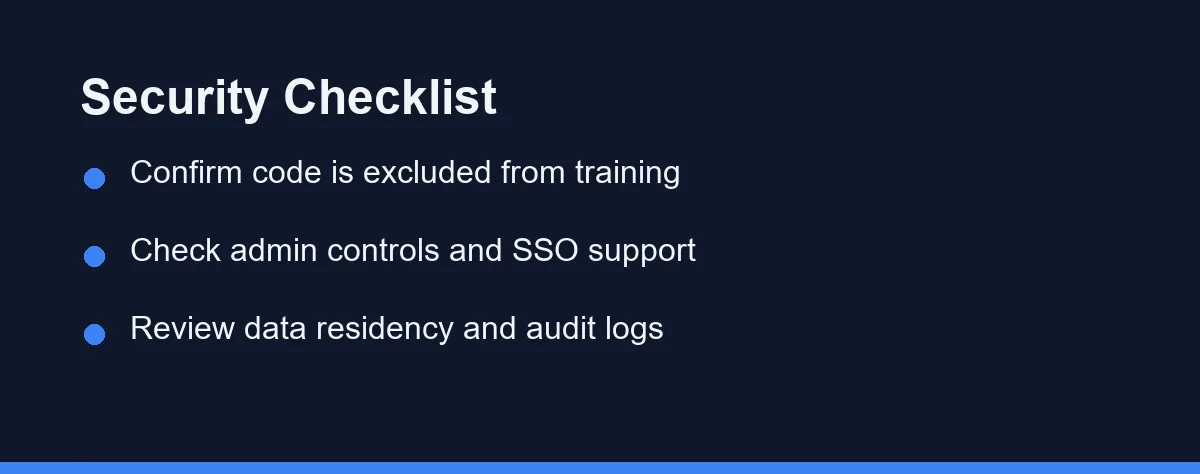
The first question is training. Confirm that your code is excluded from model training on the plan you choose. Most business tiers offer this, but you should verify it directly.
Access control comes next. Look for single sign-on, role-based permissions, and the ability to manage seats centrally. These features keep access tidy as the team grows.
Auditing and residency round out the list. Larger organizations may need audit logs and clear data residency terms. Always confirm the current details on each vendor’s official pages.
Treat security as a gate, not an afterthought. A fast tool that fails your compliance needs is not a real option.
How They Handle Common Team Tasks
Different jobs favor different tools. Knowing this helps a team assign the right assistant to the right task.
For everyday autocomplete, broad IDE tools shine. Suggestions appear as developers type, which keeps small edits quick across many editors.
For large, structural changes, a terminal agent has the edge. Renaming a function across many modules benefits from a tool that reads and edits the whole repository in one pass.
For shared editing sessions, an AI-first editor feels natural. The chat and inline edits stay in one window, which keeps reviewers and authors close together.
Writing tests sits in the middle. Most tools can draft a single test file, while an agentic tool can wire up tests across several modules at once.
A Quick Setup Example
Getting started usually takes only a few minutes per developer. A common Claude Code session for a team repository looks like this.
# Install the CLI, then run it inside your shared project
npm install -g @anthropic-ai/claude-code
cd team-service
claude

# Then describe the task in plain English, for example:
# "Update the logging module across all services and adjust the tests."
In-editor tools follow a different rhythm. A developer installs the extension, signs in with a team account, then triggers suggestions or chat from within the editor.
The key point for teams is consistency. Document the install steps once, then share them so every member sets up the tool the same way.
How to Roll Out Across a Team
A smooth rollout matters as much as the tool itself. Rushing it usually creates confusion and pushback.
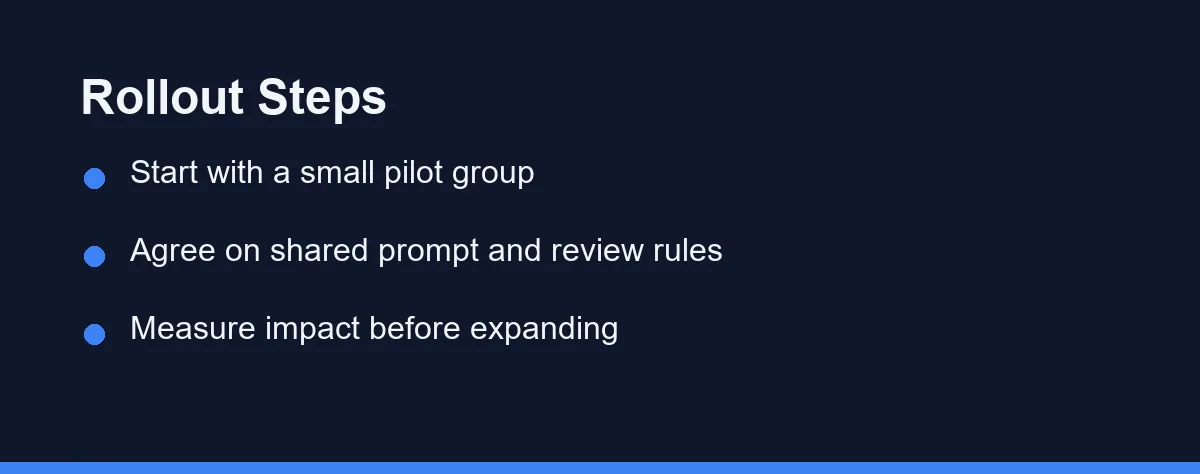
Start small with a pilot group. Pick a few willing developers, let them use the tool for real work, and gather honest feedback.
Agree on shared rules next. Decide how the team prompts the assistant, how it reviews AI changes, and when it uses the tool at all. Our guide on setting coding standards an AI assistant will follow shows how to write rules the tool actually reads.
Measure the impact before expanding. Track simple signals like review time and bug rates rather than chasing vague feelings of speed.
Then expand in stages. Add more developers once the pilot is stable, and keep refining your shared habits as you go.
Seat Math Before You Commit
All three tools use paid plans, and pricing changes often. Always confirm the current numbers on the official pages before you commit.
Most vendors offer team or business tiers above their individual plans. These usually add admin controls, stronger data handling, and central billing.
Seat-based pricing is common, so cost grows with team size. Estimate total cost across all seats, not just the headline per-seat figure. If the budget debate is really about adding capacity, our look at an AI coding assistant vs hiring a junior developer frames that trade directly.
As a rule, match the plan to how heavily your team codes. Heavy daily users justify a paid business tier, while lighter teams may start smaller.
Habits That Compound Across a Team
A few habits help any team get more value from these tools. They apply no matter which assistant you choose.
Give clear, specific instructions. Instead of “fix this,” name the file, function, or behavior you mean. Specific prompts produce better output.
Review AI changes like any other change. Use pull requests and diffs so a human signs off before code merges. This keeps quality and accountability high.
Work in small steps for risky changes. Ask for one change, review it, then continue. Small steps keep results predictable across the team.
Share what works. When a prompt or workflow saves time, document it so the whole team benefits, not just one person.
Using More Than One Tool Together
Teams do not have to pick a single tool. A common setup pairs assistants by their strengths.
Many teams keep an in-editor tool open for daily coding and quick suggestions. The familiar editor keeps everyday work fast and comfortable.
When a task grows large, a developer switches to a terminal agent. It handles the repository-wide change, runs the tests, and reports back for review.
This split plays to each tool’s design. For a broader category overview, see our guide to the best AI coding assistants. For a focused head-to-head, read GitHub Copilot vs Claude Code.
Which Setup Fits Your Team Size
A two or three person startup. Pick one tool and skip the committee. GitHub Copilot inside VS Code gives everyone the same baseline with almost no admin work, and you can add a terminal agent later when the codebase grows.
A larger team on one big monolith. Pair an in-editor assistant with Claude Code for structural jobs. Daily completions stay in the editor, while renames and cross-module migrations go to the agent that reads the whole repository.
A team under strict compliance rules. Start from the security checklist, not the feature list. Choose a business tier that excludes your code from training, supports single sign-on, and exposes audit logs, then confirm those terms before rollout.
A team split across editors and languages. Breadth wins here. Copilot covers VS Code, JetBrains IDEs, and Neovim, so nobody has to change editors just to join the pilot.
An agency moving between client repositories. Favor per-seat plans you can resize each month. Client work is lumpy, and a plan you can scale down between contracts protects your margin.
Pilot First, Decide From Real Work
The best AI coding assistant for a team is the one that fits your stack, security needs, and habits. There is no single winner for every group.
Copilot offers broad reach and a strong GitHub fit. Claude Code brings agentic, repo-wide power from the terminal. Cursor delivers a shared AI-first editor.
For most teams, the smartest move is a small pilot before a full rollout. Test with real work, agree on shared rules, and let the results guide your final choice.
Settle one housekeeping question during the pilot rather than after it. Whether the rules files belong in version control is covered in our guide to committing AI assistant config files to your repo, and teams that decide it early avoid a messy cleanup later.
Budget pressure during a rollout tempts teams into sharing a single login. Our guide to sharing an AI coding seat explains why that breaks and what to do instead.
FAQ
What is the best AI coding assistant for a small team?
It depends on your stack and budget. GitHub Copilot suits teams already on GitHub, while Claude Code fits terminal-driven, repo-wide work. Cursor works well for teams that want AI inside a shared editor.
Are AI coding assistants safe for proprietary team code?
Most business plans offer stronger data controls than personal tiers. Look for options that exclude your code from training and support enterprise access controls. Always confirm the current terms on the official pricing page.
Can a team mix more than one AI coding assistant?
Yes. Many teams pair an in-editor tool for quick edits with a terminal agent for large changes. Standardizing prompts and review habits matters more than picking a single vendor.
How do we stop AI-generated code from slowing down code review?
Ask contributors to flag pull requests that contain substantial AI-written code, and keep those changes small. Reviewers can then focus on the parts a model tends to get wrong, such as error handling, edge cases, and unfamiliar library versions. Requiring the author to explain the change in their own words also filters out code nobody understands.
How many seats should we buy for a first team rollout?
Start with enough seats for one squad rather than the whole engineering group, often somewhere between three and eight developers. That size gives you real feedback without a large commitment, and vendors like GitHub and Cursor bill per seat so you can expand later. Confirm current pricing and any seat minimums on the official site before you order.
Sources
- OWASP Top Ten — checked 2026-09-07
- Anthropic pricing — checked 2026-09-07
- GitHub Copilot plans — checked 2026-09-07
Some links may be affiliate links. We may earn a commission at no extra cost to you.
This article was written with AI assistance. It is researched and fact-checked, not based on personal hands-on testing unless explicitly stated.
Comments
Post a Comment