JetBrains AI Assistant vs GitHub Copilot: Which Is Better for IntelliJ Users?

Introduction
If you spend your day inside IntelliJ IDEA or another JetBrains IDE, the AI assistant question gets specific. You are not choosing a general tool. You are choosing what plugs best into an editor you already know deeply.
Two strong options dominate that choice. JetBrains AI Assistant is built by the same company as your IDE. GitHub Copilot is the widely used assistant that runs almost everywhere, including as a JetBrains plugin.
This guide compares the two for developers rooted in the JetBrains ecosystem. We look at integration depth, autocomplete quality, chat, refactoring help, and workflow fit. The aim is a practical pick, not a scoreboard.
By the end, you will know which assistant suits your editor habits and stack. The right answer depends on how tied you are to JetBrains tooling and how much you switch editors.
Quick Answer

For developers who live almost entirely inside JetBrains IDEs, the native AI Assistant has a natural home-field edge. It ties into IntelliJ’s refactoring, inspections, and framework awareness. That deep integration is its main selling point.
GitHub Copilot wins on breadth and momentum. It runs across VS Code, JetBrains, and other editors, so your setup travels with you. Its inline autocomplete is fast and well tuned for everyday coding flow.
Neither is a clear winner for everyone. If you rarely leave JetBrains and value tight IDE integration, the native assistant fits. If you switch editors or want the most widely supported tool, Copilot is the safer bet.
What to Look For
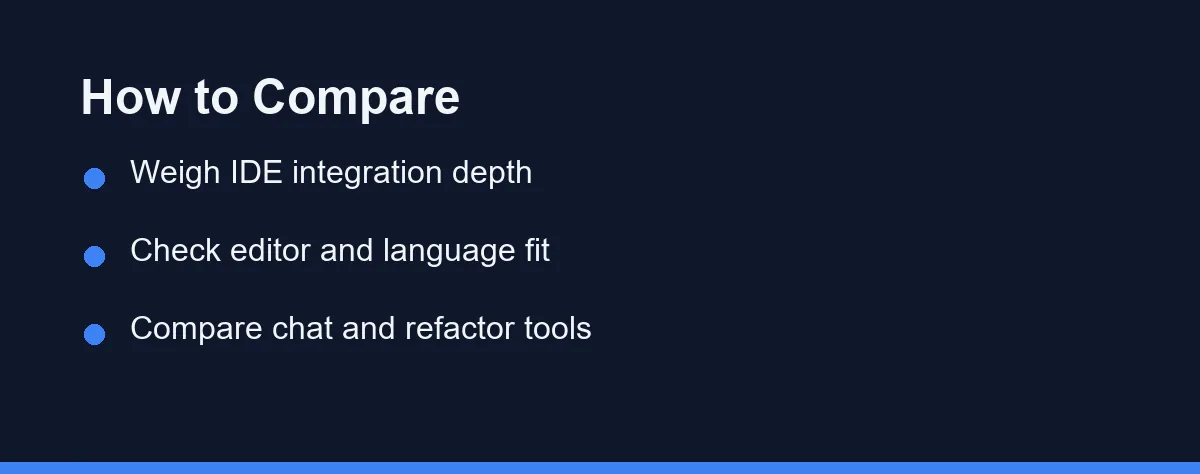
Start with how tightly you live inside JetBrains. If IntelliJ is your only editor, native integration matters more. If you hop between VS Code and JetBrains, a cross-editor tool keeps your experience consistent.
IDE integration depth is the first real differentiator. JetBrains AI Assistant hooks into the IDE’s own refactoring and inspection engine. That can make its suggestions feel more aware of JetBrains-specific tooling than a general plugin.
Autocomplete quality drives daily satisfaction. Copilot built its reputation on smooth inline completion across languages. Test both on your real code, since completion quality is easier to feel than to read about.
Chat and explanation features matter for learning a codebase. Both tools offer in-editor chat to explain code, draft functions, and answer questions. Check how naturally that chat pulls in your open project context.
Refactoring support is a JetBrains strength worth probing. IntelliJ is famous for powerful refactors, and its assistant can lean on that foundation. See how each tool handles a rename or extract-method task on your own project.
Language and framework coverage rounds out the check. Both handle Java, Kotlin, Python, and JavaScript well. If you work in a niche stack, trial each to confirm the suggestions stay useful there. The official GitHub Copilot and JetBrains AI pages list current capabilities.
Top Options
These two assistants take different design bets. One optimizes for depth in a single IDE family, the other for reach across many. Both are credible for IntelliJ users.
JetBrains AI Assistant
The native assistant is built into JetBrains IDEs and speaks their language. It plugs into the IDE’s inspections, refactorings, and project model. For developers who value that cohesion, it feels like a natural extension of the editor.
Its trade-off is scope. Being tied to JetBrains means it does not follow you to other editors. If your world is IntelliJ, PyCharm, or WebStorm, that limit rarely bites. If you switch editors often, it becomes a real constraint.
The assistant offers chat, code generation, and explanations inside the IDE. Because it shares the IDE’s understanding of your project, its context can feel well grounded. That grounding is the core reason to prefer it.
GitHub Copilot
Copilot is the broadly adopted assistant that runs across editors, including as a JetBrains plugin. Its inline autocomplete is fast and reliable for routine code. Many developers keep it on constantly for flow.
Its advantage is portability and maturity. You get the same assistant in VS Code, JetBrains, and beyond, so your habits transfer. That consistency matters if your work spans more than one editor.
Inside JetBrains, Copilot works as a plugin rather than a native feature. It may not tap JetBrains-specific refactoring as deeply as the native tool. But for pure completion and chat, it holds its own. Our GitHub Copilot vs Cursor guide covers its editor-agnostic side.
Running Both Together
Some developers install Copilot inside JetBrains and use the native assistant too. One handles inline completion while the other covers chat or refactoring. This can capture strengths from each side.
The catch is potential overlap and cost. Two assistants suggesting at once can clash or duplicate. If you try this, assign each a clear role so they complement rather than compete.
Feature Comparison
The table below compares the two assistants on the points that matter to JetBrains users. Treat it as a quick reference, not a final verdict. Your own trial should confirm the fit.
| Factor | JetBrains AI Assistant | GitHub Copilot |
|---|---|---|
| Home environment | Native to JetBrains IDEs | Cross-editor, plugin in JetBrains |
| IDE integration depth | Deep, ties into IDE tooling | Solid, but plugin-level |
| Inline autocomplete | Capable | Fast and widely praised |
| Cross-editor use | JetBrains only | VS Code, JetBrains, more |
| Refactoring awareness | Leans on IntelliJ refactors | General, less IDE-specific |
| Chat in editor | Yes, project-aware | Yes, project-aware |
| Best fit | JetBrains-only developers | Multi-editor developers |
The split is clean once you scan the rows. JetBrains AI Assistant trades reach for depth inside one IDE family. Copilot trades some IDE-specific depth for portability and a mature completion engine.
For a developer who never leaves IntelliJ, the native assistant’s integration is a genuine draw. For one who moves between editors or wants the most supported tool, Copilot is the pragmatic pick. Many will settle it by trialing both.
How to Choose

Begin with your main editor and how loyal you are to it. If JetBrains IDEs are your only home, the native assistant’s depth is a strong reason to start there. If you split time with VS Code, Copilot keeps things consistent.
Next, weigh how much you rely on refactoring. IntelliJ users who lean heavily on its refactors may prefer the tool built to use them. If your work is more greenfield coding, autocomplete quality may matter more.
Then consider your language and framework mix. Both cover the mainstream well, so test each on your actual stack. A short trial reveals which gives more useful suggestions for your daily code.
Factor in your broader toolchain too. If your team standardizes on GitHub, Copilot may slot into existing accounts and workflows. If your tooling is JetBrains-centric, the native assistant reduces moving parts.
Finally, trial both on real tasks before committing. Use each for a few days of genuine work, not a toy demo. The tool that quietly saves you time is the one to keep.
Pricing: What to Expect
Both tools use subscription pricing rather than one-time fees. Costs vary by plan and any bundled features. Confirm current pricing on the official site, as of 2026, since these plans change regularly.
JetBrains AI Assistant may bundle with JetBrains subscriptions in some forms. If you already pay for an IDE license, check whether an AI plan attaches cleanly. Bundling can shift the value math in the native tool’s favor.
GitHub Copilot sells its own tiers, including options aimed at individuals and teams. If your organization already uses GitHub, procurement may be simpler. Alignment with existing billing can matter as much as the sticker price.
For solo developers, frame either cost against time saved, not raw price. A plan that reclaims even an hour a month usually justifies itself. Track that saved time so renewal is a decision backed by evidence.
If you consider running both, add the costs and the benefit honestly. Two assistants only pay off if each earns its keep in a distinct role. For many IntelliJ users, one well-chosen tool is enough.
Conclusion
For developers anchored in JetBrains IDEs, both assistants are credible choices with different strengths. JetBrains AI Assistant offers deep, native integration for those who never leave IntelliJ. GitHub Copilot offers breadth, portability, and a mature completion engine across editors.
The right pick follows your habits more than any spec. If you live inside JetBrains and lean on its refactoring, the native tool has a real edge. If you switch editors or want the most widely supported option, Copilot fits better.
Trial both on your own code before deciding. Feature lists cannot tell you which suggestions feel useful on your stack. A few days of real work will make the winner obvious.
Revisit the choice as your toolchain evolves. Adopting a new editor or joining a GitHub-centric team can tilt the decision later. For related reading, see our guides on GitHub Copilot vs Cursor and choosing an AI coding assistant for a small team.
FAQ
Is JetBrains AI Assistant or GitHub Copilot better for IntelliJ users?
JetBrains AI Assistant is built into IntelliJ and other JetBrains IDEs, so it understands their tooling deeply. GitHub Copilot works across many editors and is known for fast, broad autocomplete. The better pick depends on whether you live inside JetBrains all day.
Can I use GitHub Copilot inside a JetBrains IDE?
Yes, you can install Copilot as a plugin inside JetBrains IDEs and run it alongside the native assistant. Some developers use one for inline completion and the other for chat and larger edits. Watch for overlap so suggestions do not clash.
Do both tools support Kotlin and Java equally well?
Both handle mainstream languages like Java, Kotlin, Python, and JavaScript well. JetBrains AI Assistant tends to lean into JetBrains-specific refactoring and framework context. Copilot leans on breadth across editors and ecosystems.
Some links may be affiliate links. We may earn a commission at no extra cost to you.
This article was written with AI assistance. It is researched and fact-checked, not based on personal hands-on testing unless explicitly stated.


Comments
Post a Comment